Ledger Live Not Syncing? Fix Account and Cache Issues Safely
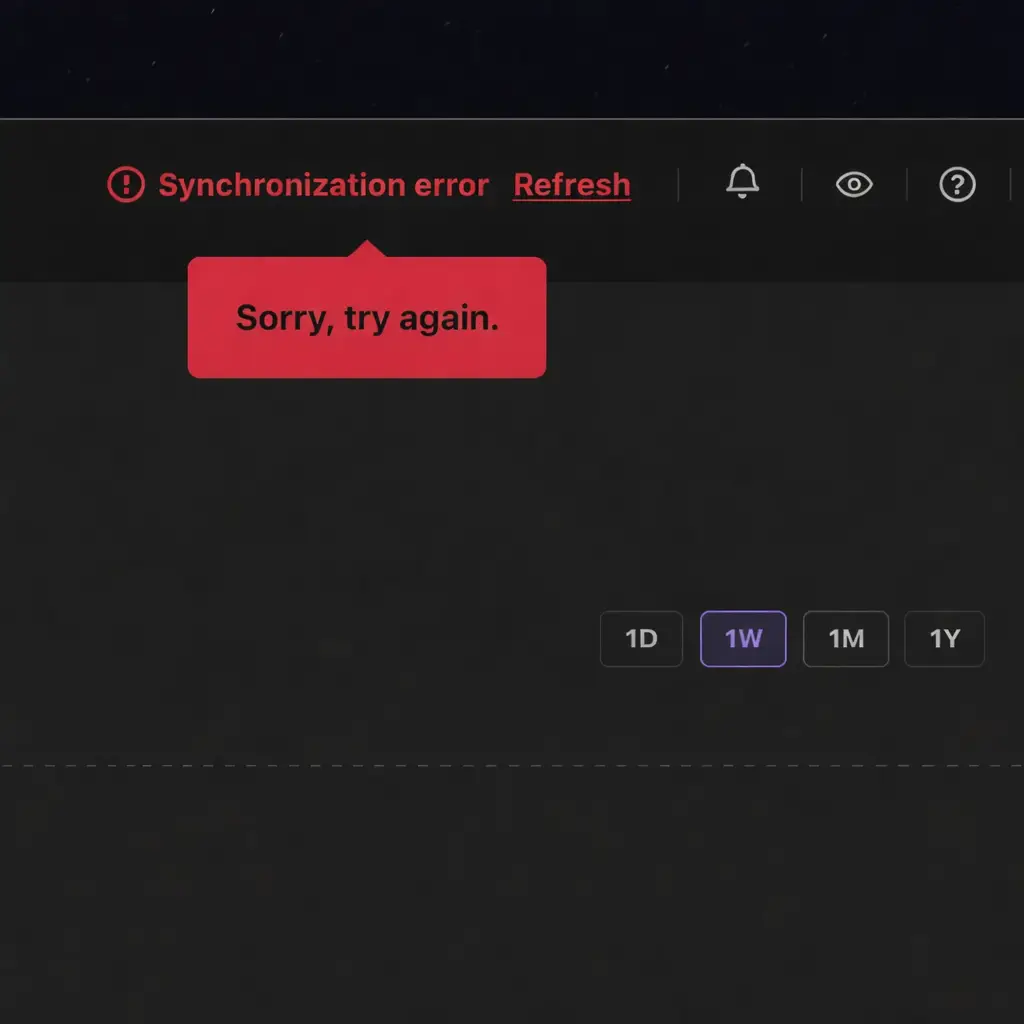
Ledger Live not syncing is one of the most frustrating problems because it makes users wonder whether the app is broken, the account is missing, or the funds are gone. In many cases, the real issue is smaller than it looks. This guide explains what Ledger Live not syncing usually means, how to fix account and cache issues safely, when network conditions may be the real cause, and how to avoid making a display problem worse through panic.
Quick Answer
If Ledger Live is not syncing, start with the safest fixes first: check whether the issue is temporary, clear the cache, confirm the correct account and network, and rebuild the account view if needed. Do not confuse a sync problem with wallet loss. In many cases, the account still exists and the issue is only with refresh, network access, or how Ledger Live is displaying the data.
Why This Problem Is Usually Fixable
- Many sync issues are app, cache, or network problems
- A missing balance display does not always mean missing assets
- There are safer steps to try before assuming the worst
What Makes It Worse
- Panicking and trying random “recovery” shortcuts online
- Confusing account sync with wallet recovery
- Resetting or reinstalling everything without checking the real cause
What to Check Before Trying Random Fixes
Start by deciding whether this is a display issue, an account issue, or a device issue.
Ledger Live not syncing does not always mean the wallet is broken. Sometimes the app is simply failing to refresh balances, transactions, or account state correctly. That can feel dramatic, especially when numbers do not match what you expect, but the first job is to slow down and separate display issues from true recovery issues.
If you are still new to the overall Ledger workflow, read How to Use Ledger Nano X first so you do not mix up app behavior with wallet ownership.
You should also think about what changed recently. Did you restore the device, switch to a new phone or computer, reinstall Ledger Live, add a different account, or change your network environment? Sync problems often begin after a normal workflow change rather than from a deeper wallet failure.
If you recently reinstalled the app itself, pair this page with How to Download and Install Ledger Live Safely.
What “Ledger Live Not Syncing” Usually Means
Most of the time, the problem is smaller than it first appears.
The App Is Not Refreshing Account Data Properly
This is the most common version of the problem. The account still exists, but the app is not updating balances, recent activity, or state changes the way it should.
The Network or Data Source May Be Delayed
Sometimes the issue is not on your device at all. The app may be waiting on blockchain data, network access, or other background services that affect how information appears.
The Interface May Need to Be Rebuilt
After a restore, reinstall, or device switch, the problem may be with how the account is represented inside Ledger Live rather than with the wallet itself. In that case, the fix may involve refreshing or re-adding the account view.
How to Fix Ledger Live Not Syncing Safely
Start with the steps that reduce risk and avoid unnecessary damage.
1. Check Whether the Problem Looks Temporary
If the issue appeared suddenly and nothing else changed in your setup, give yourself a moment before taking bigger action. Some sync problems come from temporary refresh or service conditions rather than from your wallet setup itself.
2. Clear the Cache Before You Do Anything Extreme
Cache problems can make Ledger Live show stale data, incomplete balances, or stubborn sync errors. Clearing the cache is often a safer first move than reinstalling everything or changing the device setup.
3. Rebuild the Account View If Needed
If the app still does not reflect what you expect, the next safe step is to refresh the account side of the interface. That may mean re-adding the account rather than assuming the wallet itself has disappeared.
Ledger Live Sync Troubleshooting Checklist
Use this checklist before assuming your crypto is missing.
- Check whether the issue may be temporary
- Clear Ledger Live cache first
- Confirm you are looking at the correct account and network
- Re-add the account view if the interface still looks incomplete
- Avoid any website or popup asking for your recovery phrase
When Network Conditions May Be the Real Problem
Not every sync problem starts inside Ledger Live itself.
Connectivity and Background Interference
Sync issues can come from how the app reaches the data it needs. If your network environment changed recently, or if security tools are interfering with app traffic, the app may fail to refresh properly even though your wallet setup is fine.
VPN, Proxy, or Security Software Effects
If you use a VPN, proxy, firewall, or aggressive antivirus setup, consider whether those tools are interfering with app communication. That does not mean you should disable protections recklessly, but it does mean network behavior can be part of the diagnosis.
Why Re-Adding the Account Sometimes Fixes the Problem
This is especially common after restore, reinstall, or balance mismatch confusion.
Ledger Live not syncing is sometimes really an account-view problem. The wallet may still be correct, but the app instance you are using has not rebuilt the account properly. In that case, adding the account again can help the app rescan and display the expected state.
Use How to Add Accounts in Ledger Live the Right Way if the sync issue seems tied to one missing account, one wrong balance view, or an incomplete portfolio after restore.
Why Sync Problems Often Appear After a Restore or Device Switch
Users often notice sync problems right after resetting a Ledger, restoring from the recovery phrase, moving to a new computer, or reinstalling Ledger Live on a different device. In many of those cases, the wallet recovery itself is not the issue. The interface simply needs to rebuild the accounts and reconnect to the normal workflow.
If your issue started after a reset or a recovery flow, also review How to Reset a Ledger Device Safely and Lost Ledger but Have Recovery Phrase?.
What a Sync Problem Should Never Lead You to Do
A sync error should never push you into typing your recovery phrase into a website, browser popup, chat message, or fake support form. If a balance problem suddenly turns into an online phrase request, stop immediately. That is not a normal sync fix.
If you need a clean reminder of why the recovery phrase must stay out of these flows, read Ledger Recovery Phrase Safety.
What If the Balance or Transactions Still Look Wrong?
If Ledger Live still shows the wrong balance, missing transactions, or incomplete account history after you clear cache and refresh the account, do not jump straight to reset. First confirm that you are viewing the correct account, the correct network, and the correct device context.
If the issue feels more like app detection or device communication than account display, go to Ledger Not Connecting.
Common Mistakes When Ledger Live Is Not Syncing
Most of the damage comes from panic, not from the sync issue itself.
Assuming a Sync Error Means Wallet Loss
This is the biggest mental trap. A sync problem usually means the app is struggling to display or refresh information, not that the wallet vanished.
Skipping Cache and Account Refresh Steps
Users often jump too quickly into extreme solutions when a safer refresh path would have been enough.
Following Fake Recovery Instructions
Scammers love confusion around balances and account state. If a “fix” asks for the recovery phrase online, it is not a safe fix.
Who This Ledger Live Sync Guide Is Best For
Best Fit For
- Users seeing sync errors, stale balances, or incomplete account data
- People troubleshooting after restore, reinstall, or device change
- Readers unsure whether to clear cache or re-add accounts
- Users who want safer steps before doing anything drastic
Less Useful For
- Users who are still only trying to install Ledger Live for the first time
- People whose main problem is a forgotten PIN
- Cases where the recovery phrase may already be exposed online
- Readers comparing hardware wallets rather than fixing a workflow problem
Ledger Live Not Syncing FAQ
What should I do first if Ledger Live is not syncing?
Start with safer steps first: check whether the issue looks temporary, clear the cache, and confirm you are viewing the correct account and network before doing anything more drastic.
Does Ledger Live not syncing mean my crypto is gone?
Usually no. In many cases it means the app is not refreshing or displaying account data properly, not that the wallet itself is gone.
Can clearing cache fix a Ledger Live sync problem?
Yes, cache problems can cause stale balances or stubborn sync behavior, so clearing cache is often one of the safest first fixes to try.
Why would re-adding an account help?
Because the issue may be with how the account is represented inside Ledger Live, especially after restore, reinstall, or balance mismatch confusion. Re-adding the account can help rebuild that view.
Can VPN or proxy settings affect Ledger Live sync?
Yes, network tools such as VPN, proxy, firewall, or antivirus settings can interfere with how the app reaches the data it needs, so they may be part of the troubleshooting path.
Our Final Verdict
Ledger Live not syncing is stressful, but it is usually a workflow or display problem before it is a wallet problem. The safest response is to stay calm, clear cache, refresh the account view, and check whether network conditions are getting in the way.
The key is not to let a sync issue push you into irreversible actions. Treat it as a diagnosis problem first, keep the recovery phrase completely out of the fix path, and work through the safer steps before assuming something deeper is wrong.