How to Add Accounts in Ledger Live the Right Way
How to add accounts in Ledger Live the right way is one of the most misunderstood parts of using a Ledger device. Many users think adding an account creates something new from scratch, when in practice the app is usually scanning for accounts tied to the wallet already secured by your device and recovery phrase. This guide explains what adding an account really means, what to do before you start, why accounts may not appear after restore, and how to avoid the mistakes that create unnecessary panic.
Quick Answer
To add accounts in Ledger Live the right way, make sure you are using the correct device and wallet backup, install the relevant blockchain app on the Ledger first, unlock the device, open the matching app, and then let Ledger Live scan for available accounts. If an account does not appear right away, that does not automatically mean the assets are gone. In many cases, you need the right app, the right recovery setup, and a proper rescan path.
Why This Step Matters
- It helps rebuild the working portfolio view inside Ledger Live
- It is often required after restore, migration, or reinstall
- It helps users verify they are working with the correct wallet setup
Where Users Get Confused
- Mixing up device apps and Ledger Live accounts
- Expecting accounts to appear automatically after restore
- Assuming a missing account always means missing funds
What to Check Before Adding Accounts in Ledger Live
The cleanest account setup starts with the right device state and the right expectations.
Before adding any account, make sure you are using the correct Ledger device and that it has been unlocked normally. If you recently restored the device, changed to a different Ledger, or reset anything, pause and think about whether the wallet on the device is really the same one you expect to see inside Ledger Live.
If you are still in the early setup stage, start with How to Use Ledger Nano X so the account step makes sense in the wider workflow.
You should also be clear about the recovery side. Ledger Live can only show accounts that belong to the wallet actually secured by the device and backup you are using. If the wrong recovery phrase was restored, the account list may look incomplete even though the app itself is working normally.
If you need to double-check the backup side before doing anything else, read Ledger Recovery Phrase Safety.
What “Add Account” Actually Means in Ledger Live
This is where most of the confusion begins.
It Is Not Just a Cosmetic Button
Adding an account is not only about changing the sidebar view. It is part of how Ledger Live identifies and displays the accounts that belong to the wallet currently secured by your device.
Apps and Accounts Are Not the Same Thing
The app installed on the Ledger device and the account shown in Ledger Live are related, but they are not identical. You often need the relevant blockchain app installed on the device before the account can be added properly inside Ledger Live.
Missing Accounts Do Not Always Mean Missing Assets
If an account is not showing, that does not automatically mean the wallet is empty or gone. It can simply mean the right app has not been opened, the right wallet setup is not active, or the account has not been added back to the interface yet.
How to Add Accounts in Ledger Live the Right Way
This is the clean, low-drama way to do it.
1. Make Sure the Relevant App Is Installed on the Device
Before you try to add the account, confirm that the matching blockchain app is installed on your Ledger. If the app is missing, Ledger Live may not be able to complete the account-adding flow correctly.
2. Unlock the Device and Open the Matching App
Connect the Ledger, unlock it with the PIN, and open the correct app on the device when needed. This helps Ledger Live communicate with the wallet context it is supposed to scan.
3. Add the Account Only After the Device Context Is Correct
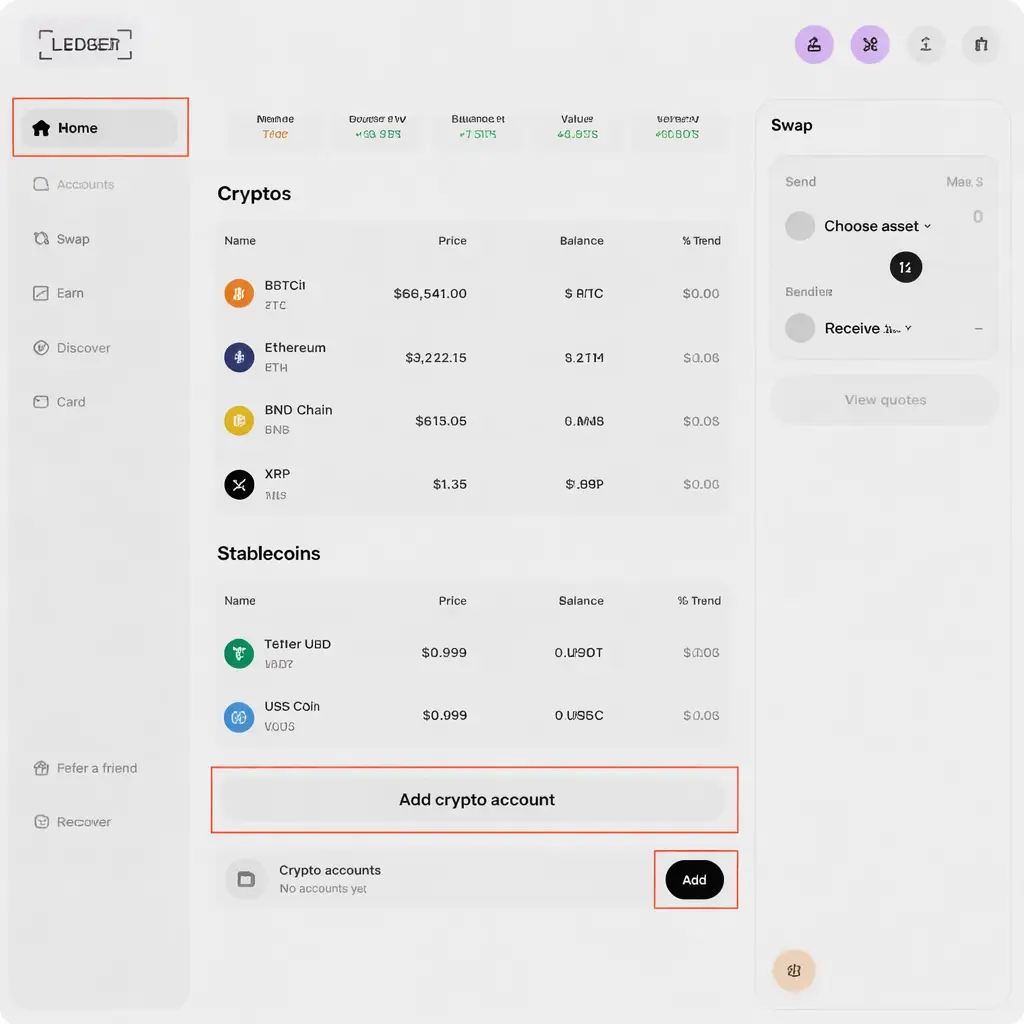
Once the device is in the right state, use the Add account flow in Ledger Live and let the app scan for the account. Do not rush into random retries if it does not appear instantly. Slow down and verify the setup conditions first.
Ledger Live Account Setup Checklist
Use this checklist before assuming something is wrong.
- Use the correct Ledger device for the wallet you want to view
- Confirm the relevant blockchain app is installed
- Unlock the device and open the correct app when prompted
- Make sure you restored the correct recovery phrase if this is a restored wallet
- Do not treat one missing account as proof that funds are gone
Why Accounts May Not Appear in Ledger Live
Most of the time, the problem is workflow, not disappearance.
The Wrong Wallet Setup Is Active
If the device was recently reset, restored, or replaced, the most important question is whether the current device setup actually matches the wallet you are trying to view. The app may be working correctly while pointing to the wrong wallet context.
The Interface Still Needs to Be Rebuilt
After recovery, migration, or app reinstall, Ledger Live may need you to manually add accounts back into the interface. Not seeing them right away can be normal, especially after a restore flow.
Why This Matters So Much After a Device Restore
This issue becomes more common after a reset, replacement, or restore because users expect the whole account list to reappear automatically. In reality, you may need to reinstall the relevant apps and manually add accounts back into Ledger Live even when the underlying wallet recovery itself was successful.
If your problem started with a lost device or restore flow, pair this page with Lost Ledger but Have Recovery Phrase? so you do not mistake a missing interface step for a missing wallet.
What Adding Accounts Should Never Require
Adding accounts in Ledger Live should never require you to type your recovery phrase into a website, a browser popup, a chat window, or a fake “wallet verification” page. If a missing account turns into an online recovery phrase request, stop immediately.
If you want the backup risks explained in plain terms before you continue, read Ledger Recovery Phrase Safety.
What If Ledger Live Still Cannot Add the Account?
If the correct app is installed, the device is unlocked, and the account still will not appear, do not immediately assume the wallet is empty. It may still be a connection, app-detection, or workflow issue rather than an account problem by itself.
Use Ledger Not Connecting if the account flow seems blocked by device detection or communication issues.
Common Mistakes When Adding Accounts in Ledger Live
Most of these mistakes come from rushing or misunderstanding what the step actually does.
Confusing Device Apps with Ledger Live Accounts
Users often think installing the app on the device means the account should already be visible in Ledger Live. In practice, those are separate steps that work together.
Panicking When Accounts Do Not Reappear Instantly
After a restore or device switch, users often expect the interface to look complete right away. Sometimes it takes a deliberate add-account step to rebuild the view properly.
Trying Risky “Recovery” Shortcuts Online
A missing account is exactly the kind of problem scammers exploit. If someone asks for your recovery phrase to “fix” the account list, stop. That is not a safe path.
Who This Ledger Live Account Guide Is Best For
Best Fit For
- New users learning the difference between apps and accounts
- Users rebuilding Ledger Live after restore or migration
- People who see an incomplete account list and want a safe next step
- Readers who want a cleaner account-adding workflow
Less Useful For
- Users still deciding whether to buy a Ledger
- People whose main problem is a forgotten PIN or device reset choice
- Readers who only need a download guide for Ledger Live
- Cases where the recovery phrase may already be exposed online
How to Add Accounts in Ledger Live the Right Way FAQ
What does Add account do in Ledger Live?
It helps Ledger Live detect and display accounts that belong to the wallet currently secured by your Ledger device and backup. It is not just a visual shortcut.
Why do I need a blockchain app on the Ledger before adding an account?
Because the device app and the Ledger Live account step work together. Without the relevant app installed and ready, the account flow may not complete properly.
Why are my accounts missing after restore?
After restore, you may need to reinstall the relevant apps and manually add accounts back into Ledger Live. Missing accounts in the interface do not automatically mean the assets are gone.
Does adding an account create a brand-new wallet?
Not in the usual sense. In most cases, it is about helping Ledger Live identify and show the accounts connected to the wallet already secured by your device and recovery setup.
Should Ledger Live ever ask for my recovery phrase to add accounts?
No. Adding accounts should never require you to type the recovery phrase into a website, popup, or fake support form.
Our Final Verdict
How to add accounts in Ledger Live the right way is really about understanding what the app is trying to display and what the device is actually securing. When users slow down, verify the device context, install the right app, and add accounts intentionally, the process is usually straightforward.
The biggest mistake is assuming a missing account means immediate loss. In many cases, it simply means the interface still needs the correct add-account step, the correct app, or the correct restored wallet context to be rebuilt properly.